Showing posts with label OctoPrint. Show all posts

Thursday, 2 June 2016

Pi Camera TAZ 5

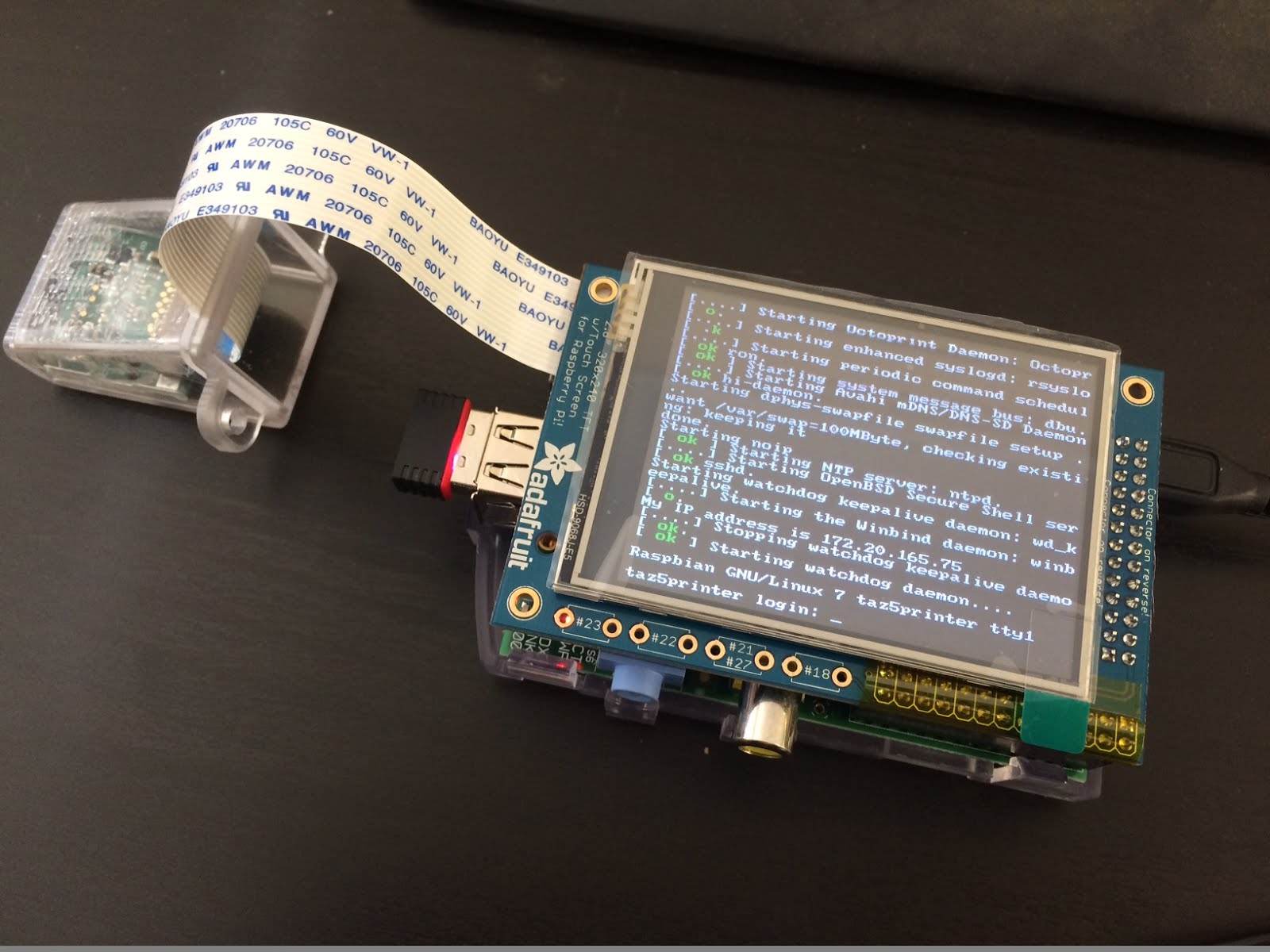
I want to keep the raspberry Pi outside of the cabinet so that the panel is accessible, and to keep it out if the heat! In order to do this I needed to extend the camera. I found this great HDMI extension kit, works well and makes camera positioning much easier!


TAZ 5 OctoPrint in Pi

I have taken the OctoPiPanel code and tweaked it for my use. It's a great idea to have some visual feedback and control on the Pi tft screen, but I wanted to make some changes to the default code. I have made the buttons and text larger, and removed a couple of buttons I wouldn't use. Also added the IP address of the Pi, so that when running on DHCP I can log in easily. And the file name to the top of the screen.


Friday, 20 May 2016

Adding PiTFT Panel

So next I'm going to add the Adafruit PiTFT panel. First I follwed this tutorial to get the panel working:

Adafruit PiTFT Install


Then follow this tutorial to install the OctoPrint interface:

OctoPiPanel Tutorial


Having got this all working, the python interface seems to be hogging the Pi processor ( 50 to 60%) and slowing everything down, so I'm going to remove it from the startup for now:

> sudo update-rc.d octopipanel remove


TAZ5 OcotPrint initial test

So I have ran my first print over octoprint. At first I didn't have much success, I tried to run the print by selecting a file from the SD card. Although the file loaded, I couldn't get it to start, when I pressed print heating did not start. Would like to get this working as I would imagine if the ocotprint server failed the SD print would continue?

Anyway, I did get a print working by simply dragging and dropping a gcode file created in S3D straight on to the interface, and printing locally. All worked very well, including webcam/time-lapse.

When annoying issue was that the cancel print button would wait for the last command to complete, so if the bed was heating, you couldn't do anything until it has finished the heating period. I got around this by adding the M112 E-Stop command into the Cancel script. This does the job but does also disconnect the printer.

TAZ 5 with OcotPrint running on Raspberry Pi

I've had a Rev B Pi sat around on my desk for at least 5 years now, and have been trying to find a use for it. So my latest desire is to have it setup on the Taz to run OctoPrint utilizing the webcam for remote viewing of the print progress. This post is here simply for my own reference so that I can repeat various steps to get the Pi up and running again should I need to.

There is an SD image already created based on Raspbian called octopi. This is probably the simplest way to get started, however, I already had Raspbian installed and would rather do things manually, so I started by following these steps here:


Setup on a Raspberry Pi running Raspbian


I configured as per the instructions, I do remember running into a missing library at some point, but can't think what it was, something to do with python-dev?? anyway, a google search turned up the answer. I did the following:

  1. Install OctoPrint
  2. Add mjpg_streamer for webcam
  3. Configure to start on boot as server
  4. Add system commands to ocotprint interface
  5. Make everything accessable on port 80

Some important file locations:

Webcam configuration:

~/scripts/webcamDaemon
I modified the webcam resolution and frame rate as I found it was swamping the wifi link on the Pi, and would often kill the network interface. My configuration looks like this:

camera_raspi_options="-fps 4 -x 640 -y 480 -q 20 -sh 100"

Edit using: nano ~/scripts/webcamDaemon

The hidden Ocotprint configuration file:
~.octoprint/config.yaml

Edit this file using
nano ~.octoprint/config.yaml
haproxy config files:
/etc/haproxy/haproxy.cfg
/etc/default/haproxy


Currently my file has some modifications to add actions to the OctoPrint interface so that I can start and stop the webcam stream, and reboot the system. Also this file contains webcam configuration, which can be accessed and changed via the OctoPrint interface. However, for changes to take effect OctoPrint has to be re-started and the browser will need refreshing. Additions to my config file are as follows:

  system:  
  actions:  
  - action: streamon  
   command: /home/pi/scripts/webcam start  
   confirm: false  
   name: Start Video Stream  
  - action: streamoff  
   command: /home/pi/scripts/webcam stop  
   confirm: false  
   name: Stop Video Stream  
  - action: reboot  
   command: sudo reboot  
   confirm: You are about to reboot the system  
   name: Reboot  
 temperature:  
  profiles:  
  - bed: '110'  
   extruder: '245'  
   name: ABS  
  - bed: 60  
   extruder: 180  
   name: PLA  
 webcam:  
  ffmpeg: /usr/bin/avconv  
  flipH: true  
  flipV: true  
  snapshot: http://127.0.0.1:8080/?action=snapshot  
  stream: http://mywebaddress.no-ip.org:8080/?action=stream  
  watermark: false  


Usefull stuff:

To start/stop services:

sudo service octoprint {start|stop|restart}
sudo service haproxy {start|stop|restart}
~/scripts/webcam {start|stop}


So what next. I setup a no-ip account so that I could have a web address I could access from anywhere that would re-direct to my OctoPi. To do this I installed the noip service on the Pi, which updates the dynamic IP address to my no-ip hostname, instructions here:

Install no-ip DUC on Raspberry Pi

Or this one, which has the auto start instructions:

No-Ip with auto start on boot

I changed the default hostname of raspberrypi to somehting else using this guide:

Change hostname

As yet I have not got an easy way to find the OctoPi on the network without knowing it's IP address. working on this...